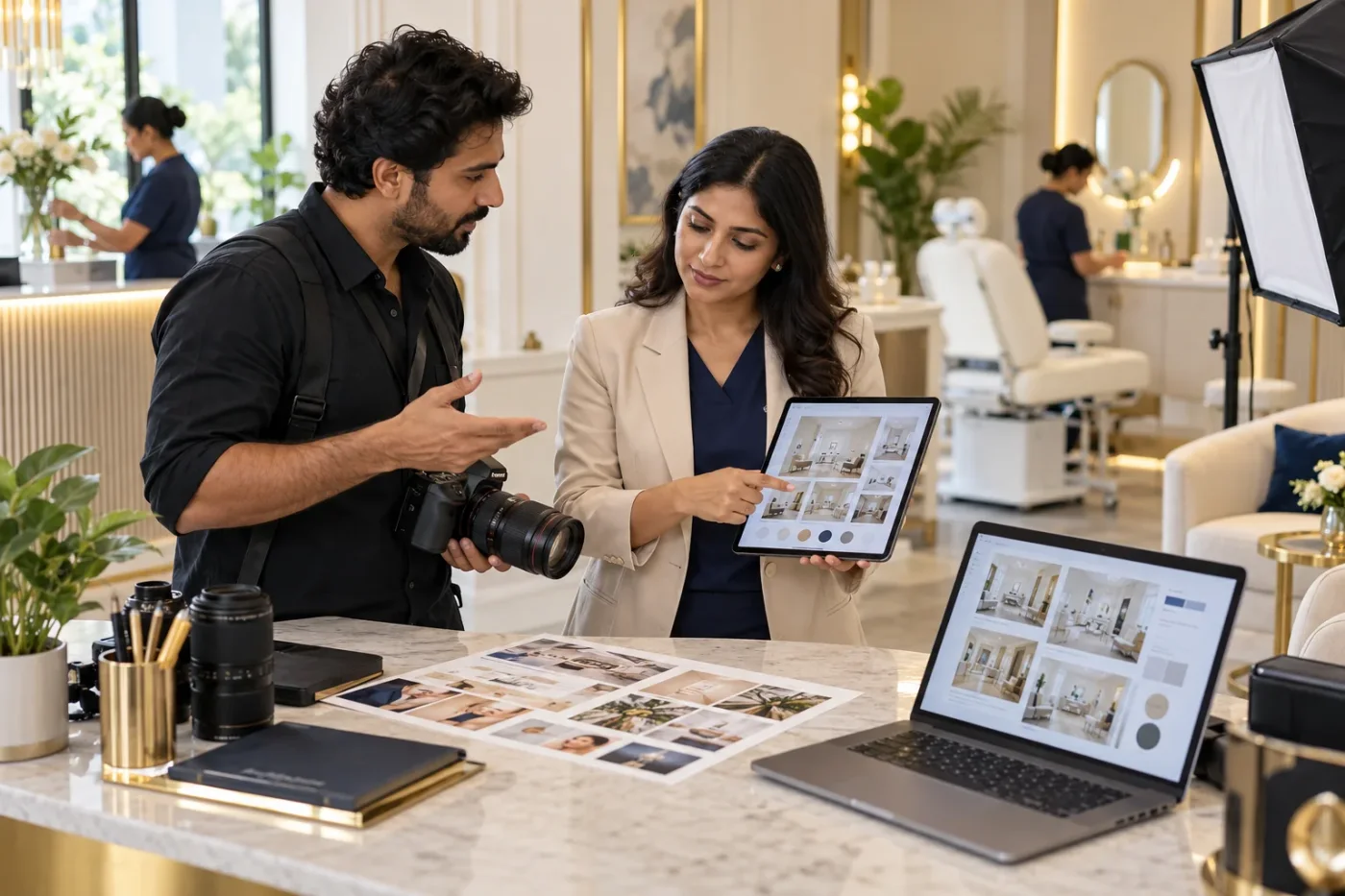
A clinic photography brief turns “we need better photos” into a clear plan for useful website assets. Without a brief, a shoot can produce many attractive images while missing the entrance visitors need to recognise, the doctor portrait that fits the layout or the room photograph needed for a service page.
The goal is a reliable set of authentic images with clear permissions and practical publishing information. This guide explains how a clinic manager can prepare the shoot, organise the results and avoid relying on decorative photographs that say little about the real practice.
Begin with the pages rather than the camera
List where the images will appear: homepage, contact page, doctor profiles, branch pages and selected service pages. Give each position a purpose. A homepage image introduces the practice; an entrance photograph helps someone recognise the location.
Ask the website team for the planned crop and the space available for text. A portrait composition may not work in a wide banner. A room image with the important feature at the edge may become unhelpful after mobile cropping.
Create a shot list with destination, subject, orientation, practical message and approval owner. This is more useful than asking the photographer for a large unspecified collection of “premium medical images.”
Prioritise photographs that answer questions
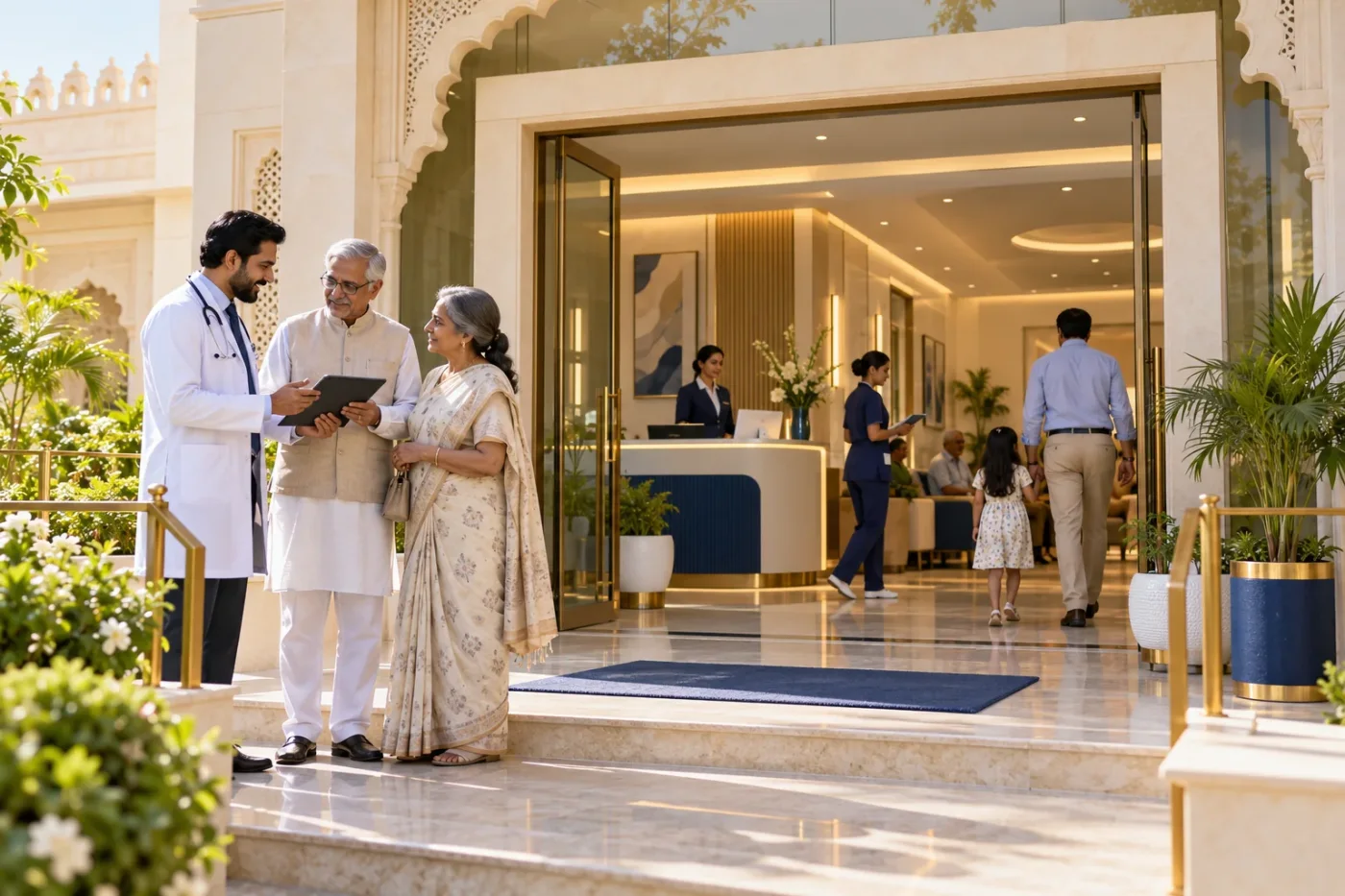
The entrance, reception, consultation environment and actual team can answer practical questions. They show what the location looks like and help a visitor connect the website to the real clinic.
A room image should reflect the space accurately. Avoid staging equipment or facilities the clinic does not offer. If a room has multiple uses, the caption should not imply an exclusive function that is untrue.
For branch photography, keep the location clear in the asset record. Images from one branch should not silently represent another if the facilities differ. Accurate labelling prevents a visual mistake from becoming an appointment expectation.
Plan authentic doctor and team portraits
Confirm the names and roles of everyone being photographed. Use an approved clothing and background approach that suits the clinic without making every portrait look artificial. Leave room around the subject for different crops.
Take a consistent set for the team directory and a few wider compositions for editorial use. The directory requires recognisable identity; an article header may need space for a title beside the subject.
Do not place a stock or AI-generated clinician beside a real doctor’s name. If the clinic uses illustrative visuals elsewhere, keep their purpose separate from identification photography. A visitor should be able to recognise the actual professional they are reading about.
Prepare the space before the shoot
Schedule photography around clinic operations so the team can control backgrounds and minimise disruption. Check desks, appointment screens, reports, prescriptions, noticeboards and reflections for identifying information.
An empty consultation room can still contain private material. Assign someone from the clinic to inspect the scene before each setup rather than expecting the photographer to recognise every sensitive detail.
Confirm the permission arrangements for identifiable people and the intended use of the images. Patient participation needs particular care and appropriate advice where required. A practical alternative is to photograph empty spaces and authorised team members without creating a staged patient story.
Give the photographer a usable visual direction
Describe the desired light, background, framing and mood using examples from the actual page layouts. “Calm, clear and welcoming, with natural skin texture” is more actionable than “make it luxurious.”
Specify that editing should preserve identity and represent the facilities accurately. Excessive retouching can undermine trust when the real space looks different. Avoid removing meaningful access features or changing a room’s apparent scale.
Request a mix of wide, medium and detail views. A wide image establishes the environment; a medium image supports a page section; a detail view can add context without repeating the same room photograph throughout the site.
Build a small image-to-page map
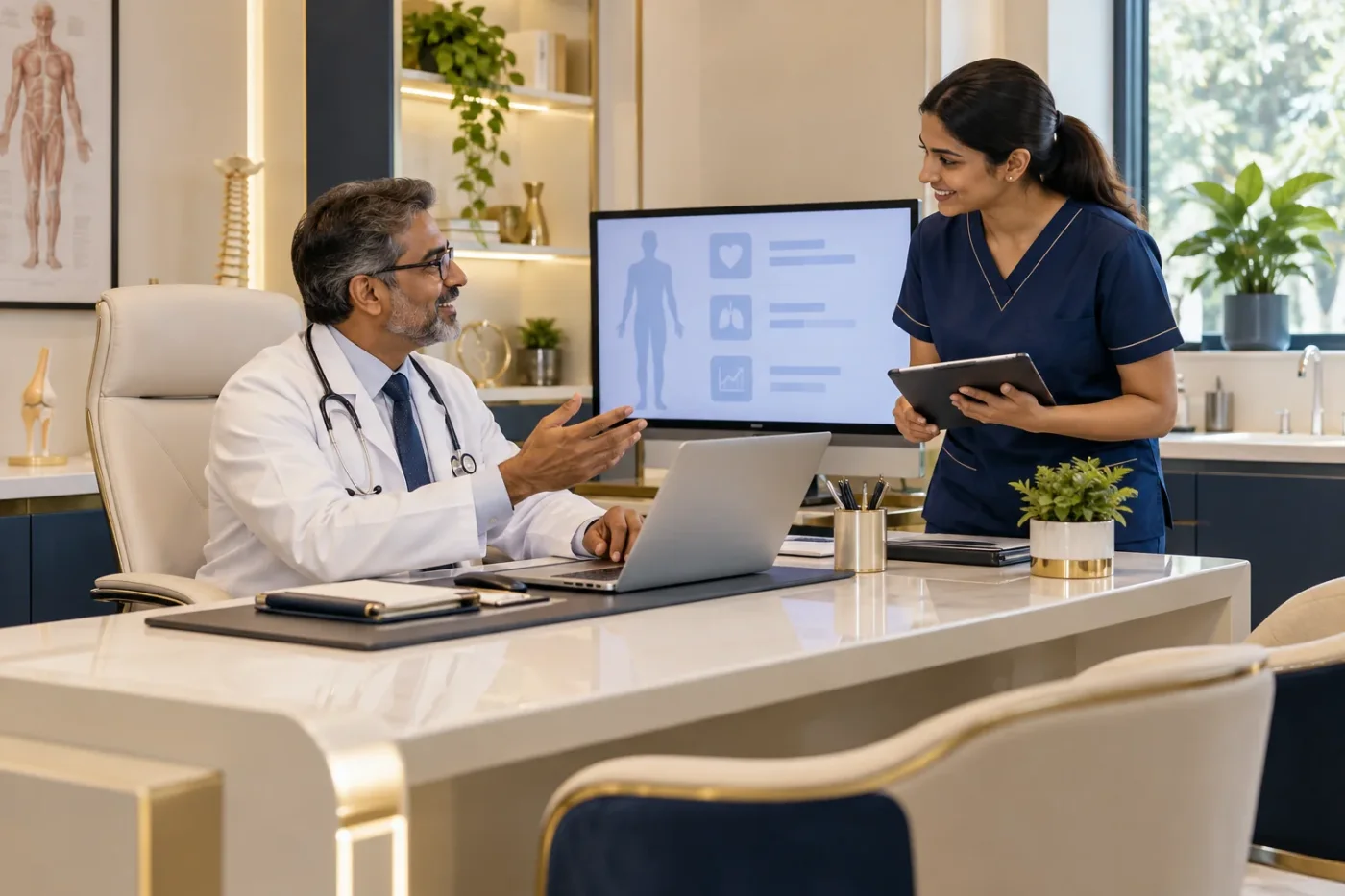
After the shoot, select images according to their job. Put the entrance photograph on the contact or location page. Put the authentic portrait on the matching doctor profile. Use room photographs beside relevant explanations.
For an illustrative map, a clinic might select five assets: an exterior for directions, a reception view for arrival information, a consulting-room view for the appointment page, a doctor portrait for identity and a team image for the practice introduction.
This approach reduces the temptation to place every approved image on every page. A smaller, relevant selection can communicate more clearly and makes it easier to maintain the asset collection.
Prepare filenames, alternatives and delivery sizes
Use descriptive filenames based on the real subject, such as “bikaner-clinic-main-entrance.webp.” Avoid long strings of promotional keywords. Filenames should help the team identify the asset as well as provide context for publishing.
Write alt text according to what the image contributes. “Main clinic entrance beside the ground-floor sign” may be useful for an informative entrance image when accurate. Decorative textures do not need the same descriptive treatment.
Google’s image guidance encourages relevant context around images and useful descriptive information. That does not mean adding keywords to every photograph or treating a filename as a ranking guarantee. The photograph must first serve the page.
Keep originals and publishing exports separate
Retain approved originals for future design work and create suitable web exports for the current layout. Ask the website team to size and compress images for their display context rather than uploading every full-resolution original.
Use a suitable format such as WebP where supported by the publishing workflow. Include image dimensions to help reserve layout space. Offscreen images can be lazy-loaded, while the main visible image should not be delayed unnecessarily.
Keep an asset register with the subject, branch, permission record, photographer terms, approved uses and replacement trigger. This is especially useful when staff change or a second agency takes over the website.
Review accuracy after the images go live
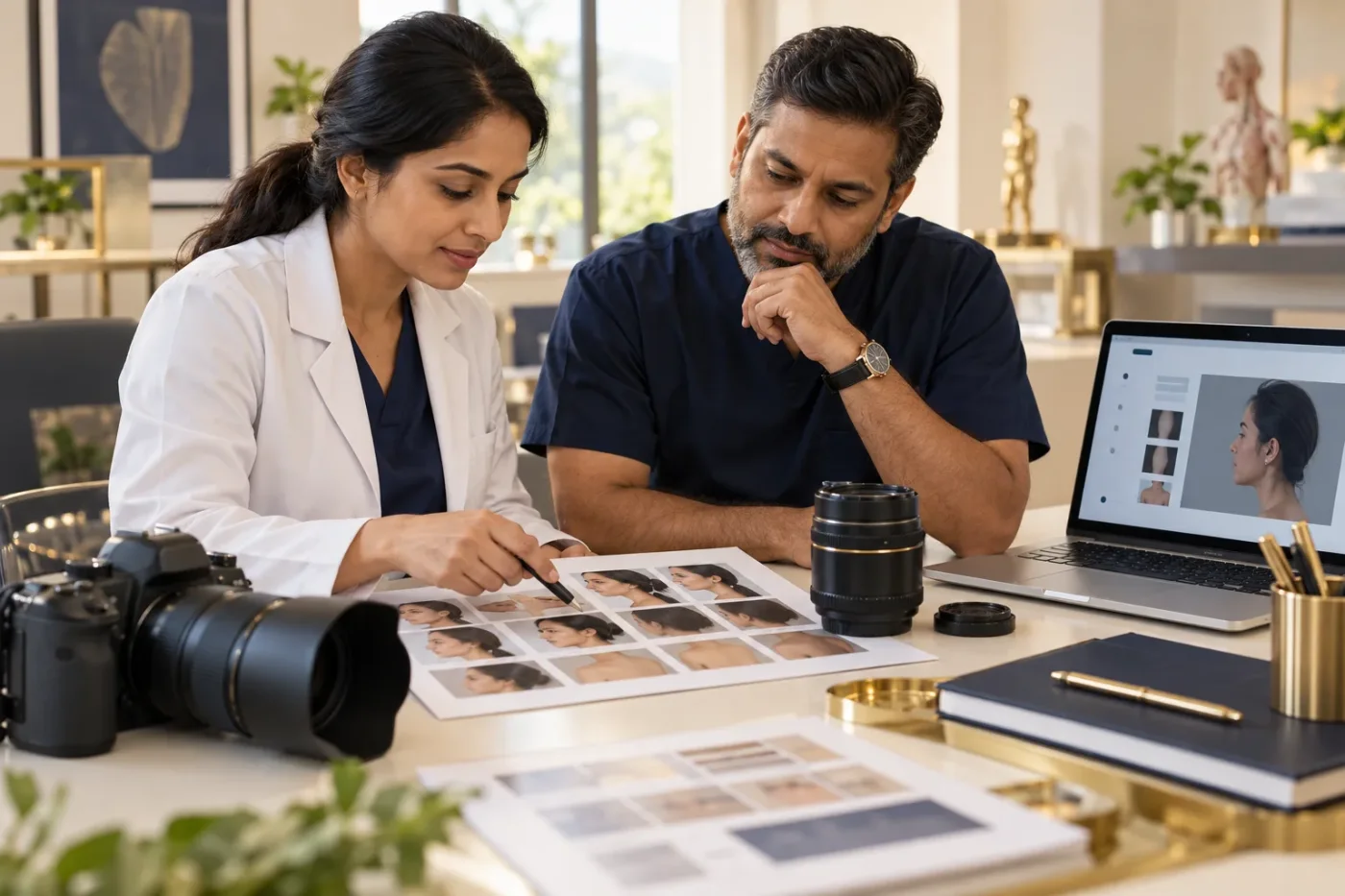
Open the pages on a phone and desktop. Check cropping, clarity, captions and whether any overlaid text hides the subject. Verify that the right portrait appears beside the right name and the correct branch images appear on location pages.
Ask reception whether visitors can recognise the entrance using the published photograph. If the sign or building changes, replace the image rather than leaving outdated directions online.
The photography project is complete when the images work in context, not when the shoot folder arrives. A beautiful image that has no useful destination is still an unused asset.
Frequently asked questions
Are stock images always unsuitable?
They may support a clearly illustrative editorial purpose. They should not misrepresent the clinic’s team, rooms, equipment or actual patients.
Do we need patients in the photographs?
No. Authentic portraits, empty spaces and approved operational details can communicate a great deal without identifiable patients or treatment scenes.
Should every photo contain the clinic logo?
Usually the website already provides brand context. Excessive logo overlays can reduce flexibility and interfere with cropping. Decide according to the image’s actual use.
Brief the shoot before booking the day
Prepare the page map, shot list and approval arrangements first. Contact Doctor Promotion to discuss how authentic photography can support your website’s content and practical visitor information.
Reference
Sources & further reading
- https://developers.google.com/search/docs/appearance/google-images